
A lot of people search for PDF to Excel when they are staring at a file full of numbers they cannot actually use. The data is there, but it is locked inside a PDF. You cannot sort it, filter it, total it, or plug it into a budget sheet without extra work. So the usual bad options show up: retype everything by hand, copy and paste a messy block of text, or waste time trying to rebuild a table from scratch.
That is why a good PDF to Excel converter matters. It takes a static document and turns it into something editable, searchable, and much easier to share. If you handle monthly sales reports, expense records, shipping tables, grade sheets, or client lists, this is one of those tasks that should be quick and boring, not something that eats up your afternoon.
With PDFSail, the process is built around practical needs. Files are processed on local servers with full 256-bit encryption protection, no file storage, and GDPR/nFADP compliant handling. That matters if you are working with internal reporting, billing data, or student materials that should not sit around online. It has also helped over 100,000 users in American get routine PDF work done faster, especially when deadlines hit at the same time as heavy network traffic.
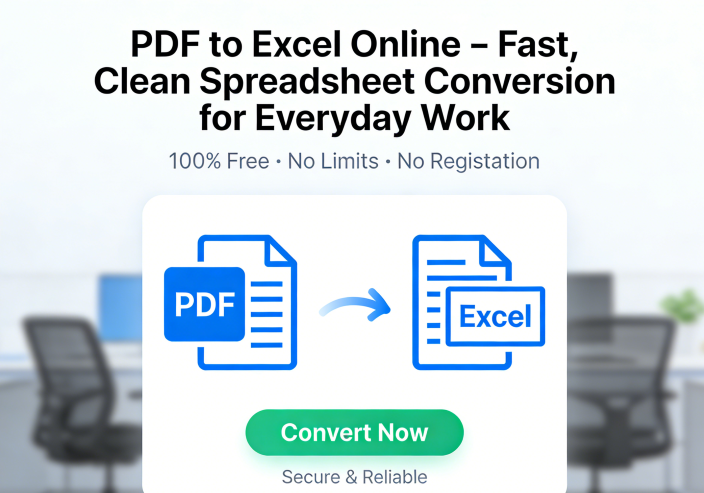
How to convert PDF to Excel in a few simple steps
-
Upload the PDF that contains the data you need
Start with the right source file. This could be a financial statement, weekly report, invoice summary, shipping list, or classroom record. Head to our PDF to Excel tool and upload it. If your document has unrelated pages mixed in, it helps to tidy it first using the PDF merge tool so the converter works only on the pages that matter.
-
Run the conversion and let the tables map into cells
Once uploaded, start the conversion. The tool reads table layouts and moves the content into an editable spreadsheet structure. This is where the real benefit starts to show up. Instead of being stuck with a view-only document, you get a file that is easier to share, easier to open, and easier to use in a real workflow. That improved sharing and accessibility makes a big difference when multiple people need to review the same data quickly.
-
Review the sheet and make quick adjustments if needed
Open the converted Excel file and spot-check totals, dates, headings, and column breaks. Most simple tables come through cleanly, while more complex layouts may need a light cleanup. Even then, it is still much faster than manual entry. If the original PDF has formatting issues or missing text, you can fix that first with our edit PDF tool and then convert again for a cleaner spreadsheet.
-
Use the file for storage, analysis, or team sharing
Now you can sort rows, run formulas, filter categories, and move the file into your normal spreadsheet workflow. This is where improved storage efficiency shows up too. Spreadsheet data is often easier to organize than stacks of static PDFs, especially if you handle recurring records every week or month. If you still need a lighter version of the original document for email or cloud folders, try our PDF compression tool as part of the same workflow.
-
Convert related files when you need a full document workflow
Some jobs do not stop at one file type. Maybe your report has supporting pages that need text editing too, in which case PDF to Word conversion can help. Maybe your source pages started as phone snapshots or photo receipts, and our JPG to PDF tool is the better first step. The point is simple: once your data is in Excel, the rest of your document handling gets easier.
Why people use PDF to Excel instead of leaving the file alone
The biggest reason is control. A PDF keeps a layout fixed, which is useful for sharing, but not for actual spreadsheet work. When you need totals, filters, formulas, comparisons, or a clean import into another system, Excel is the better format. That is true for accountants, office admins, small business owners, teachers, and students alike. You are not just converting a file. You are making the information usable again.
There is also a clear speed advantage. Faster performance and loading times matter when your original PDF is large, image-heavy, or awkward to work with on mobile. A structured spreadsheet is usually quicker to review and much easier to pass around within a team. During US peak internet hours, when a bulky file takes forever to open or forward, that difference is not theoretical. It saves time right away.
Then there is the storage side. If your shared drive is packed with old reports, scanned tables, and archived statements, converting key data into Excel can make future access a lot simpler. You are not opening a dozen PDFs just to find one line item. Improved storage efficiency is less flashy than conversion accuracy, but over time it helps more than most people expect.
Security is the part people tend to think about last, usually because they are in a rush. But if your file contains payroll details, invoices, class results, or internal planning numbers, it matters. PDFSail uses local servers, full 256-bit encryption protection, and no file storage, which gives you a more secure path from PDF to spreadsheet. For files that need approval at the end of the process, our sign PDF tool is there too.
Frequently Asked Questions
Need an editable spreadsheet instead of a locked PDF?
If your report, statement, or table is stuck in PDF format, there is no reason to spend the next hour copying cells by hand. PDFSail makes PDF to Excel conversion quick, secure, and practical with local servers, full 256-bit encryption protection, no file storage, and a workflow built for real office and school tasks. Upload the file, convert it, and get back to work.
Discover How to PDF to Excel in Just Seconds!